
Quick Navigation
Getting Started
After creating your account, you'll be guided through a simple 4-step setup process:
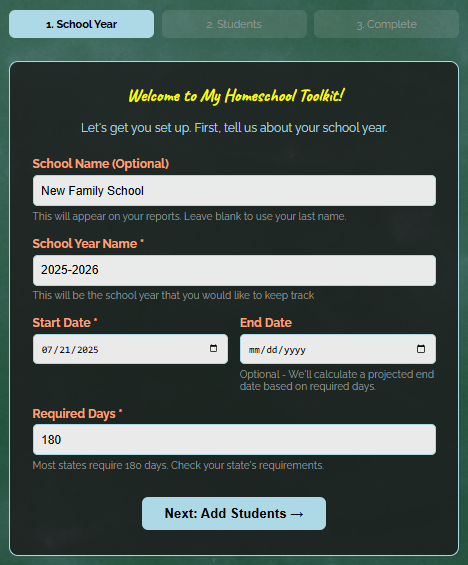
Step 1: School Year Information
Tell us about your school year:
- School Name (optional) - Appears on reports
- School Year - e.g., "2025-2026"
- Start Date - When you began teaching
- End Date - (optional) - We'll calculate a projected end date
- Required Days - Usually 180 days (check your state requirements)
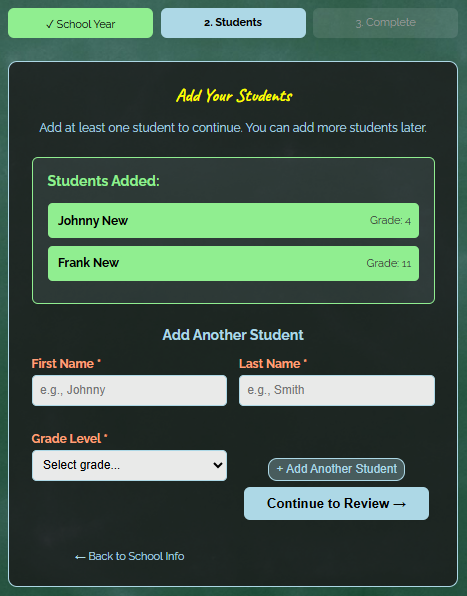
Step 2: Add Your Students
Add each child you're homeschooling:
- First Name
- Last Name
- Grade Level - Kindergarten through 12th grade
Click "Add Another Student" to add multiple children, or "Continue to Review" when done.
Step 3: Select Your Subjects
Choose the subjects you'll be teaching this year from common options like Math, Science, History, and more.
Don't see a subject you need? You can always add custom subjects later from your Profile page.
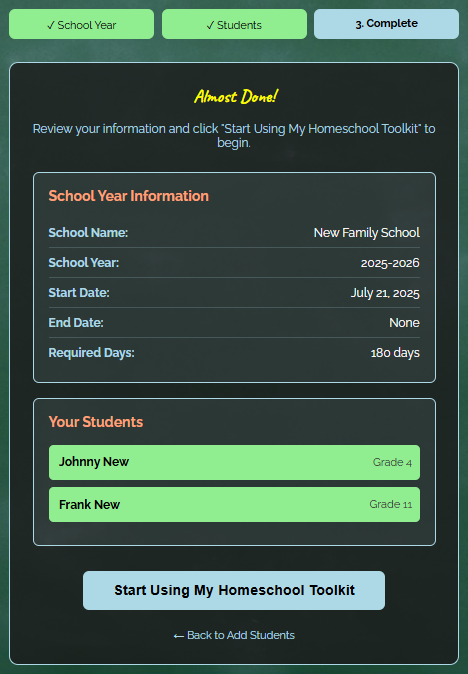
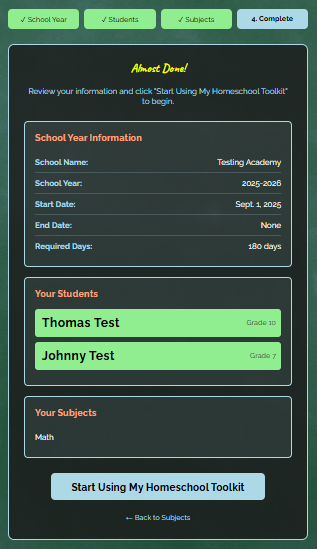
Step 4: Review & Complete
Review your information and click "Start Using My Homeschool Toolkit".
That's it! You are ready to start tracking attendance.
Daily Attendance Tracking
Marking attendance is quick and easy. Here is how:
Weekly Entry (Recommended)
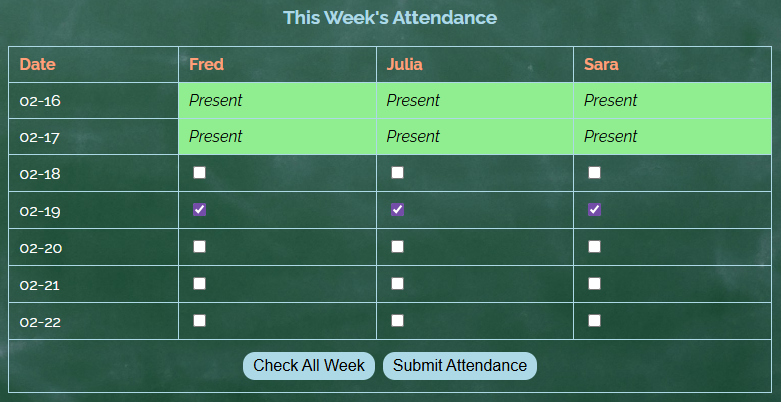
The fastest way to mark attendance:
- Click "Toolkit" → "Attendance"
- Check the box for the student for the current day
- Click "Submit Attendance"
- Repeat Daily!
💡 Tip: Use the "Check All Week" button to quickly mark Monday-Friday for all students.
Edit Past Attendance
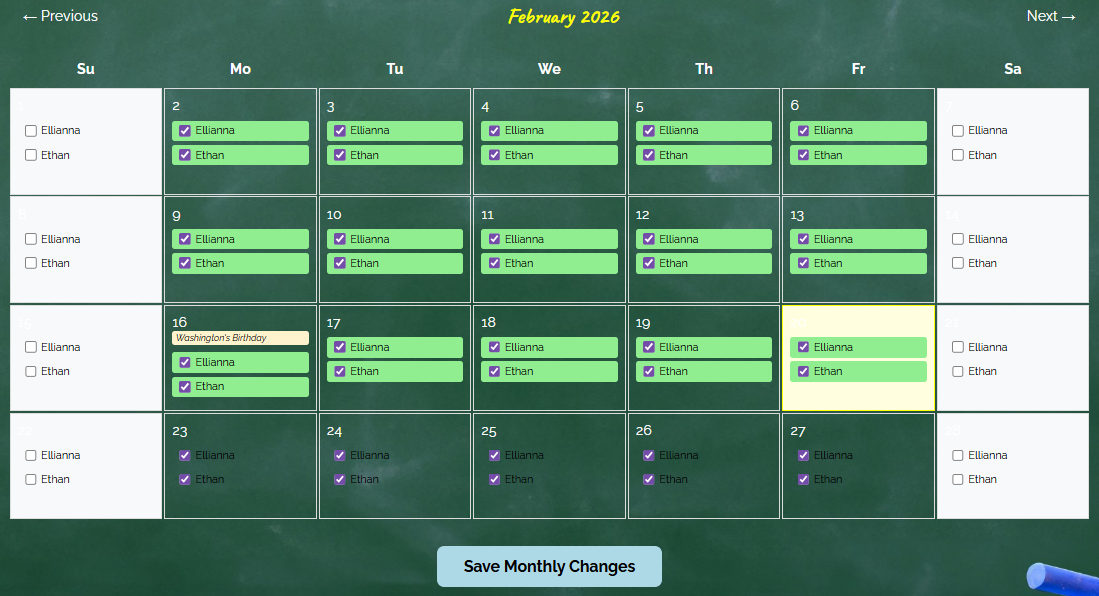
Forgot to mark a day? Made a mistake? No Problem!
- Click "Toolkit" → "Edit Attendance"
- Navigate to the month you need
- Check or uncheck boxes to update attendance
- Click "Save Changes"
Viewing Your Data
Monthly Calendar View
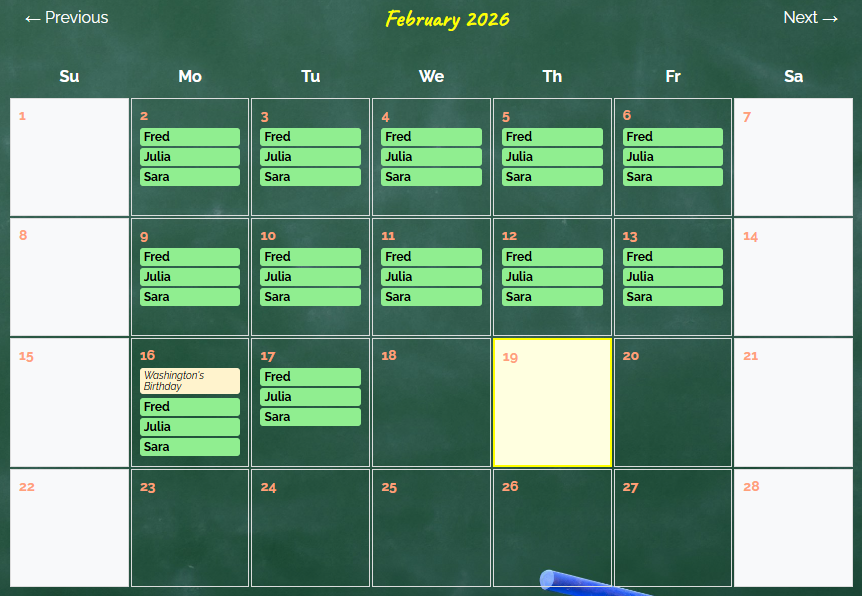
See your entire month at a glance:
- Green names = Student was present
- Yellow background = Holidays (no school)
- Click arrows to navigate between months
This view is read-only. To make changes, use Edit Attendance.
Days Remaining Counter
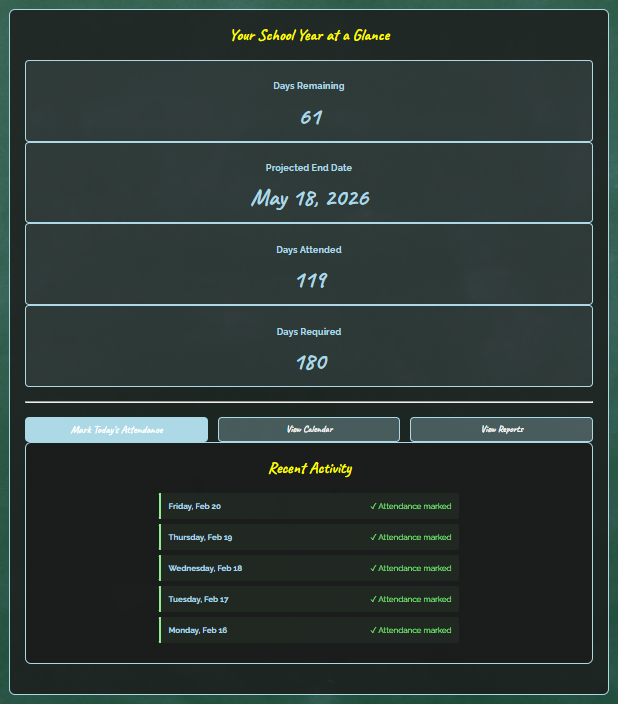
Your home page shows important information:
- Days Remaining - How many more days you need
- Projected End Date - Date when you will finish
- Days Attended - Total days marked present
- Days Required - Your state requirement (usually 180)
Tracking Grades
⭐ Premium Feature ⭐ - Track homework, quizzes, test, and participation with automatic grade calculations.
Entering a Grade
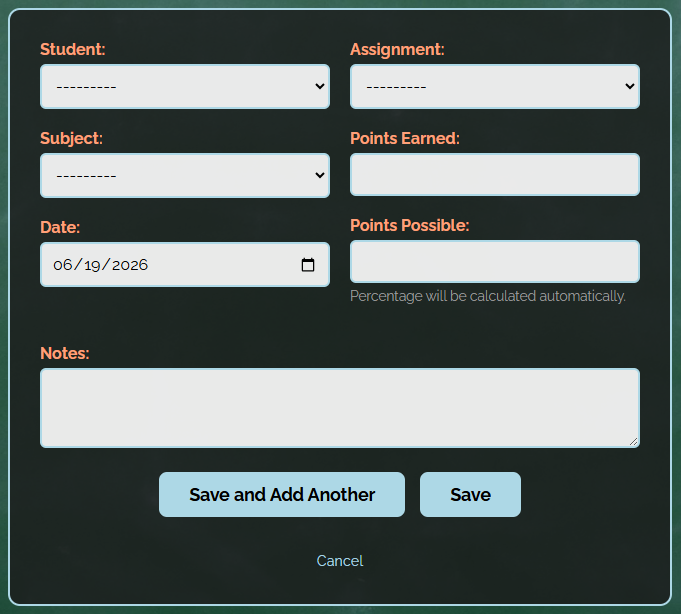
Recording a grade takes just a few clicks:
- Click "Toolkit" → "Add Grade"
- Select the student and subject
- Choose the grade type - Homework, Quiz, Test, or Participation
- Enter points earned and points possible
- Add optional notes (great for noting a specific test or chapter)
- Click "Save"
Viewing Grades
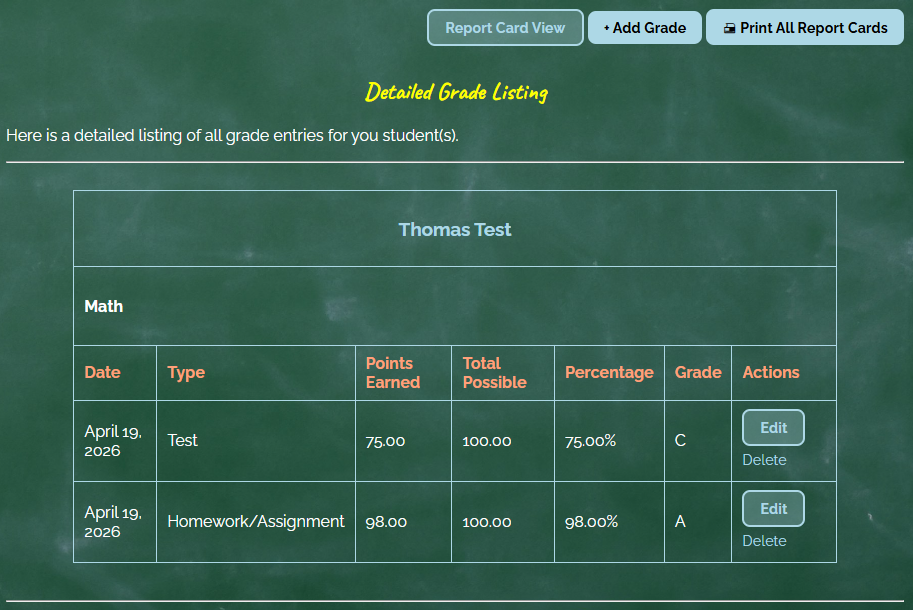
Your grades page shows each student and subject with their current average:
- Report Card View - A quick overview, like a report card summary
- Detailed View - See every individual grade entry
Toggle between views using the button at the top of the page.
Weighted Grade Calculations
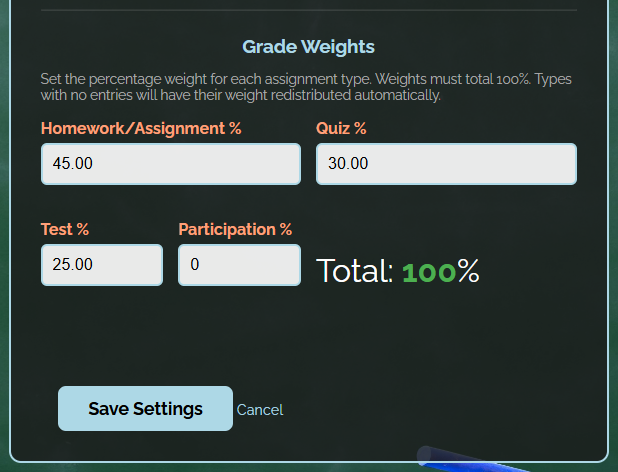
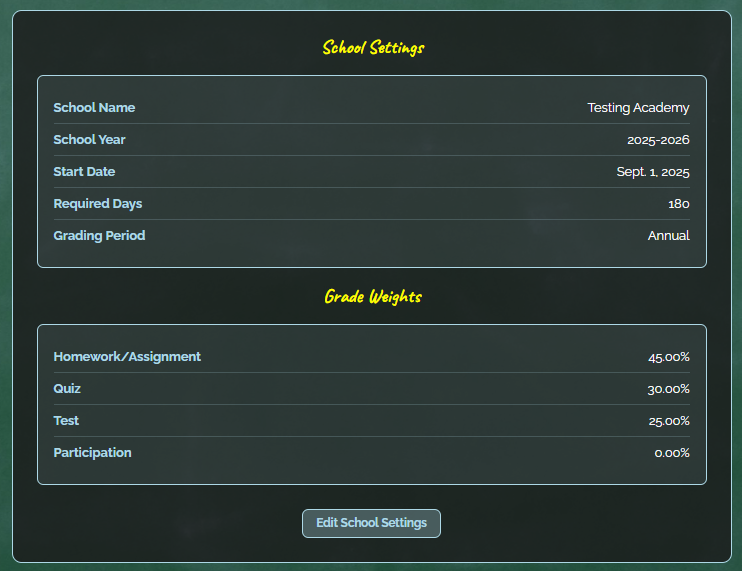
Want tests to count more than homework? You can configure custom weights for each grade type from your Profile → School Settings page.
For example, you might choose:
- Homework - 45%
- Quiz - 30%
- Test - 25%
- Participation - 0%
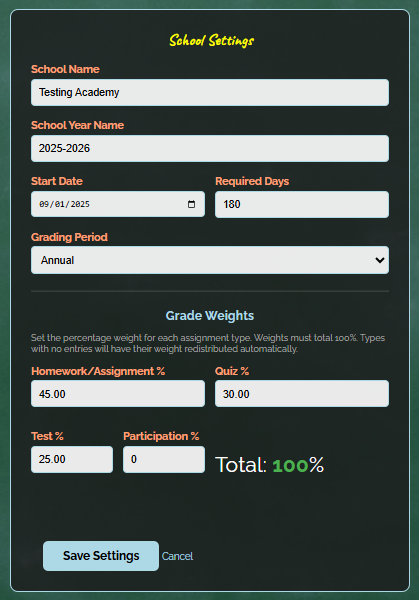
Weights must always total 100%. If you don't configure weights, grades default to a simple average across all entries.
Student Timers
Keep each student on track with visual countdown timers - perfect for timed lessons, focused work sessions, or just keeping the day moving.
Starting a Timer
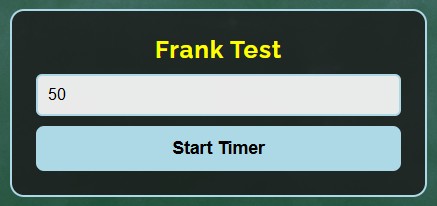
Set a countdown for any student in seconds:
- Click "Toolkit" → "Timers"
- Enter a duration, in minutes, for the student
- Click "Start"
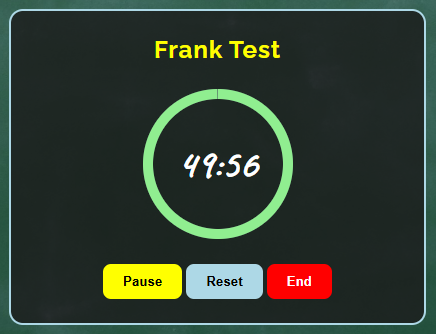
A colorful countdown ring appears, showing exactly how much time is left at a glance.
Timer Controls
Once a timer is running, you have full control:
- Pause/Resume - Stop the clock for a quick interruption, then pick back up where you left off
- Reset - End the timer early and start fresh
- End - Finish the timer session
The ring changes color as time runs low - yellow as a warning, then red when time is almost up.
The Bell ings - Anywhere in the App
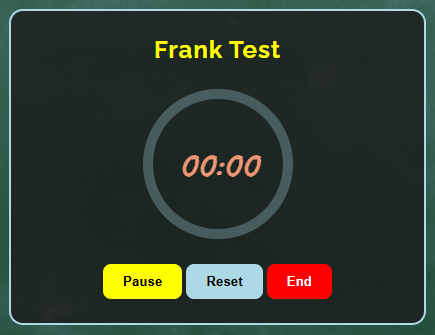
When a timer finishes, you'll hear a school bell sound - even if you've navigated away to another page. The countdown ring will also flash to get your attention.
Your Profile & Settings
Everything about your account lives in one place - school settings, students, subjects, and more.
Your Profile Hub
Click "Toolkit" → "Profile" to see everything at a glance:
- School Settings & Grade Weights
- Students
- Subjects
- Account Settings
- Current School Year
Each section has an edit link that takes you right to where you need to go.
School Settings
Update you school name, current school year details, and grading period from one form. This is also where you'll find:
Managing Students
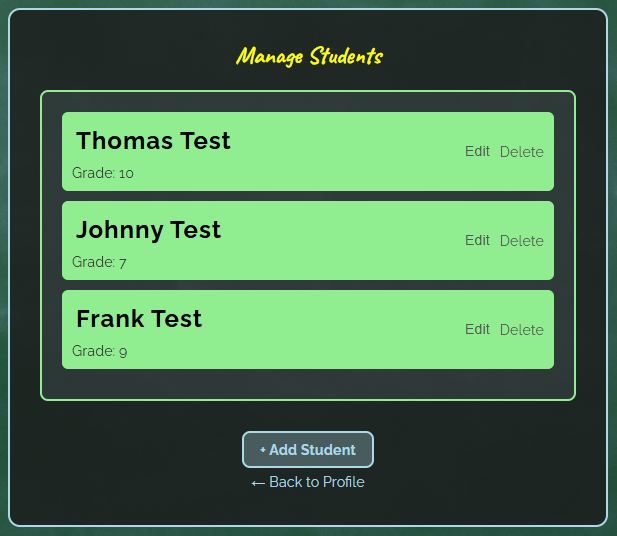
Add, edit, or remove students any time:
- Add a Student - Name and grade level
- Edit a Student - Update name or grade level
- Delete a Student - Only available if the student has no attendance or grade records yet
Managing Subjects
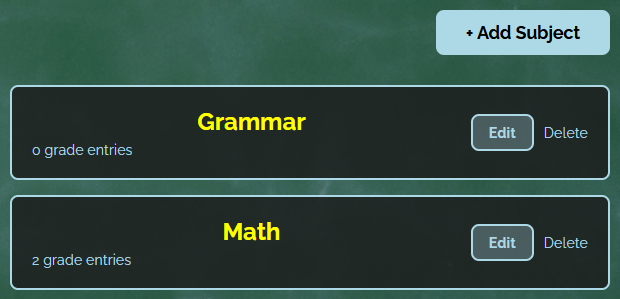
Subjects are shared across all your students. Add new subjects, edit existing ones, or remove subjects you no longer need.
Starting a New School Year
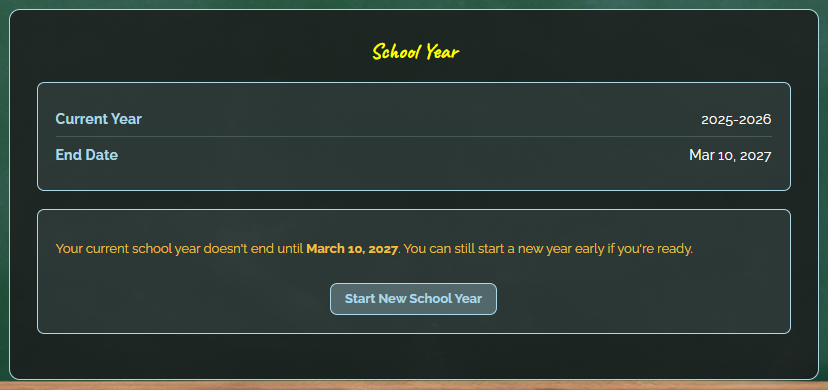
Between April and June, you'll see a "Start New School Year" button right on your Profile Hub. From July onward, the app will automatically promt you when it's time. This allows you to setup next year on your time schedule.
When you start a new year, you'll be guided through:
- Creating the new school year details
- Reviewing each student's GPA from the previous year
- Confirming each student's new grade level
Exporting Your Data
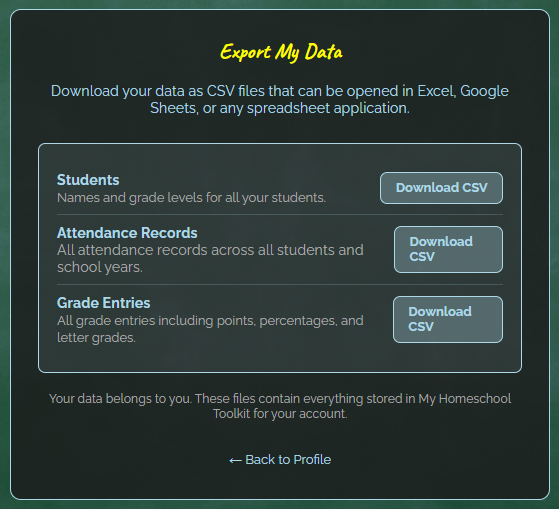
Your data belongs to you. From Profile → Export My Data, download CSV files for:
- Students
- Attendance records
- Grade entries
These files open directly in Excel, Google Sheets, or any spreadsheet app.
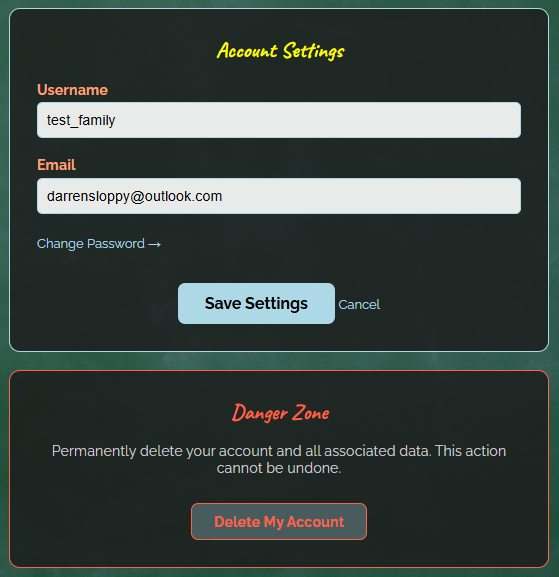
Account Settings
Update your username, email, or password from Profile → Account Settings.
If you ever need to permanently close your account, you'll find a "Delete My Account" option in the Danger Zone at the bottom of this page. You'll be asked to confirm your password before anything is deleted - this action cannot be undone.
Generating Official Reports
Generate official attendance and grade reports. Viewing your attendance summary is always free — ⭐ PDF downloads are a Premium feature ⭐.
Download PDF Reports
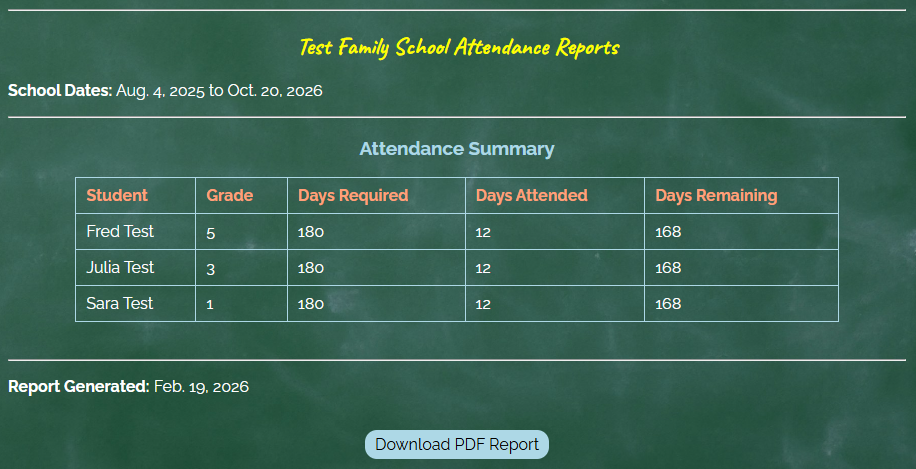
Generate official attendance reports for your school district:
- Click "Toolkit" → "Reports" in the menu
- Review the attendance summary on the screen
- Click "Download PDF Reports"
- Save or print for your records
The PDF includes:
- Each student's name and grade
- Days required and days attended
- Days remaining
- School year dates
Common Questions
What if I made a mistake marking attendance?
Use Edit Attendance to change any past entries. Navigate to the correct month, check or uncheck boxes, and save.
Can I track multiple children?
Yes! You can add unlimited students from your Profile page. Each student's attendance and grades are tracked separately.
What counts as a school day?
Verify with your state's requirements, but mark any day you did homeschool activities. The app automatically excludes federal holidays from your required day count.
How do I add another student after setup?
Visit yourProfile → Manage Students page any time. You can add, edit, or remove students whenever you need to.
Can I export my data?
Yes! Visit Profile → Export My Data to download CSV files of your students, attendance records, and grade entries - ready to open in Excel or Google Sheets.
Is my data private?
Absolutely! Only you can see your family's records. We never share your data with anyone.
What happens when I start a new school year?
Between April and June, you'll see a "Start New School Year" button on your Profile Hub. From July onward, you'll be prompted automatically. Your previous year's attendance and grades are never deleted - they're always kept for your records.
What's the difference between Free and Premium?
Attendance tracking, the attendance calendar, and student timers are always free. Grade tracking, weighted grade calculations, and PDF reports (both attandnace and report cards) are Premium features. See out Upgrade page for current pricing.
How do weighted grades work?
You can configure what percentage each grade type (Homework, Quiz, Test, Participation) counts toward a subject's overall average from Profile → School Settings. Weights must total 100%. If you don't configure weights, grades default to a simple average across all entries.
Can I delete a student or subject?
Yes, as long as they have no attendance or grade records attached. This protects your historical data from being accidentally lost. If a student or subjext has existing records, you won't be able to delete them.
How do I permanently delte my account?
Visit Profile → Account Settings and scroll to the Danger Zone at the bottom. You'll need to confirm your password before your acount and all associated data are permanently deleted. This action cannot be undone.
Need More Help?
We're Here to Help!
Can't find the answer you are looking for? We would love to hear from you.
Email: [email protected]
Response Time: We'll get back to you as quicxkly as we can